How to Optimize Your Google Business Profile (Guide for Fitness Businesses)
Here’s a clear example of why Google Business Profile optimization is so important.
Below is a screenshot of two gyms, both in Downtown Dallas. And both are likely serving the same community.
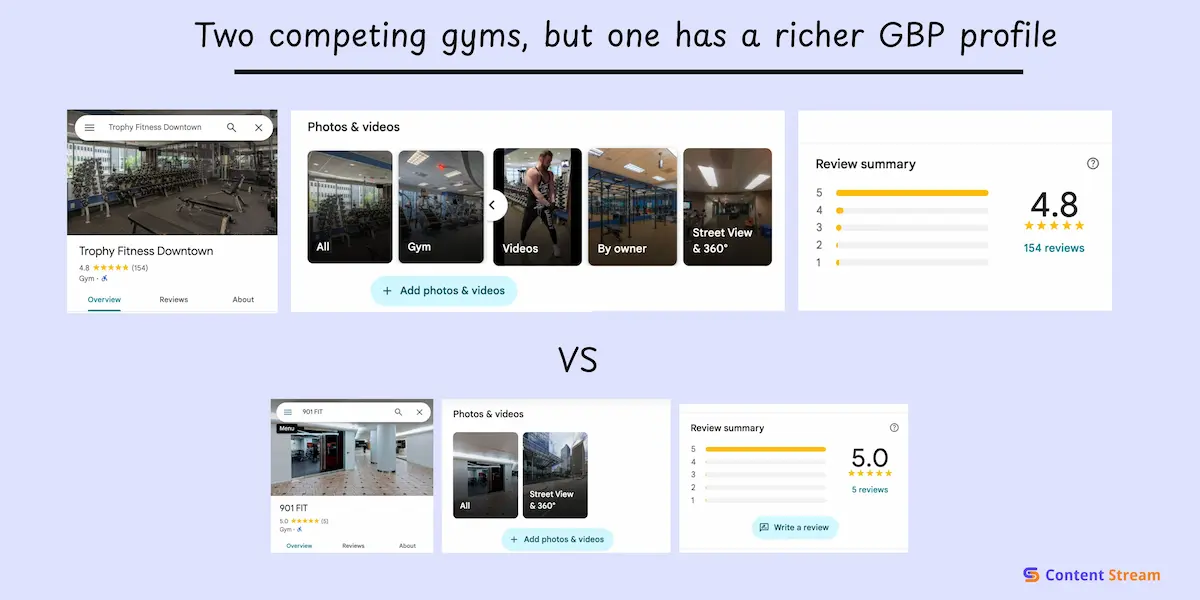
But, one of them’s Google Business Profile (GBP) is rich with details; lots of pictures and videos, a detailed description of their amenities, and dozens of reviews on what real people think of the place.
The second one, not so much. If you’re looking for a gym near you, you’re likely to choose the first, based on how much you already know about it. And that’s how Google decides who shows up first.
As Google’s own documentation puts it,
“If your business info isn’t accurate, your Business Profile might not show up for relevant searches in your area… Make sure your business info is as complete as possible in your Business Profile.”
So where do you start? Well, that’s what we cover in this guide. We’ll walk through setup, and simple optimizations you can do to keep your profile attractive to searchers..
Let’s start with why your Google Business Profile matters so much for local SEO.
PS, If your business also has a Shopify store along with physical locations, you should read our article on Shopify fitness business SEO.
Local search results are based on three factors:
When people want somewhere to work out, they’re not overthinking it. They type quick, simple phrases like:
These searches tell Google one thing: show me something close, open, and relevant right now. And Google pulls from GBPs to get the answer.
It’s really simple to create a GBP for your business, and you can do it even without this guide. But, we’ll be showing all the important details to include, if you want to give your business the best chance of showing up.
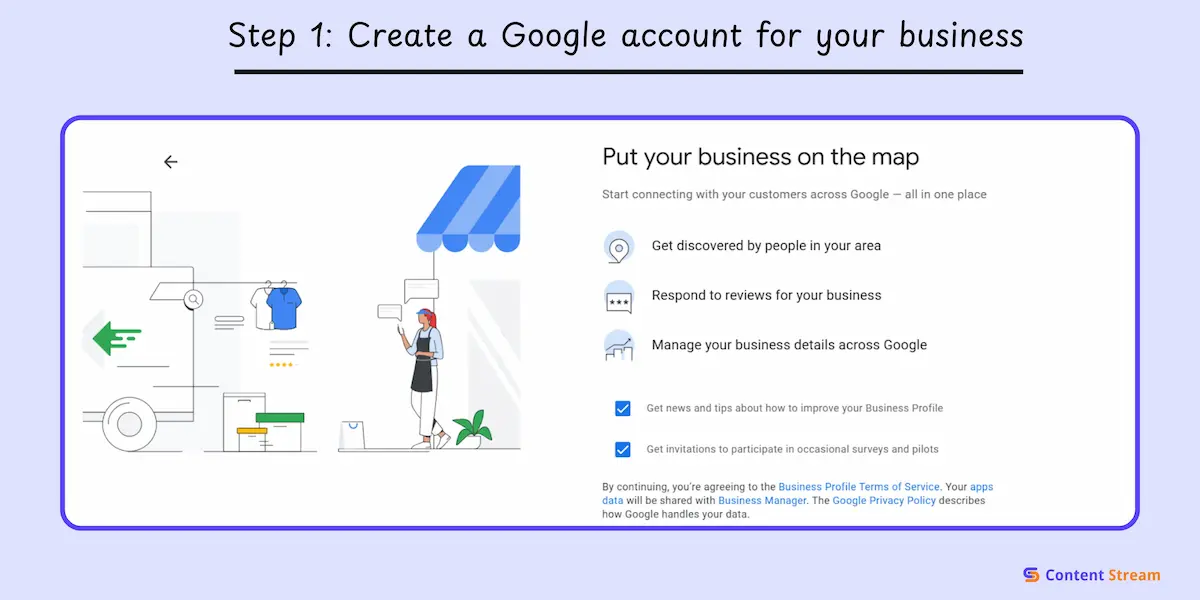
Before you can create your Google Business Profile, you need a Google Account specifically for your business. Don’t use your personal Gmail for this.
Head to accounts.google.com and click “Create account.” You’ll see an option to create an account, “To manage my business.” Choose that one.
If you have a business email address like info@yourgym.com or contact@yourstudio.com, use it. If not, create a new Gmail address specifically for your business, like momentumathleticspro@gmail.com.
Once you’ve created your business Google Account and you’re logged in, head to google.com/business. This is Google’s main gateway for managing your Business Profile.
You’ll see a page with information about Google Business Profile and how it helps customers find you. Look for the blue button that says “Start now” and click it.
This takes you directly to the setup flow in the picture below where you’ll start adding your business information. If you already have a profile created (maybe Google auto-generated one or a customer created it), you’ll see options to claim it. If not, you’ll be guided through creating a new one from scratch.
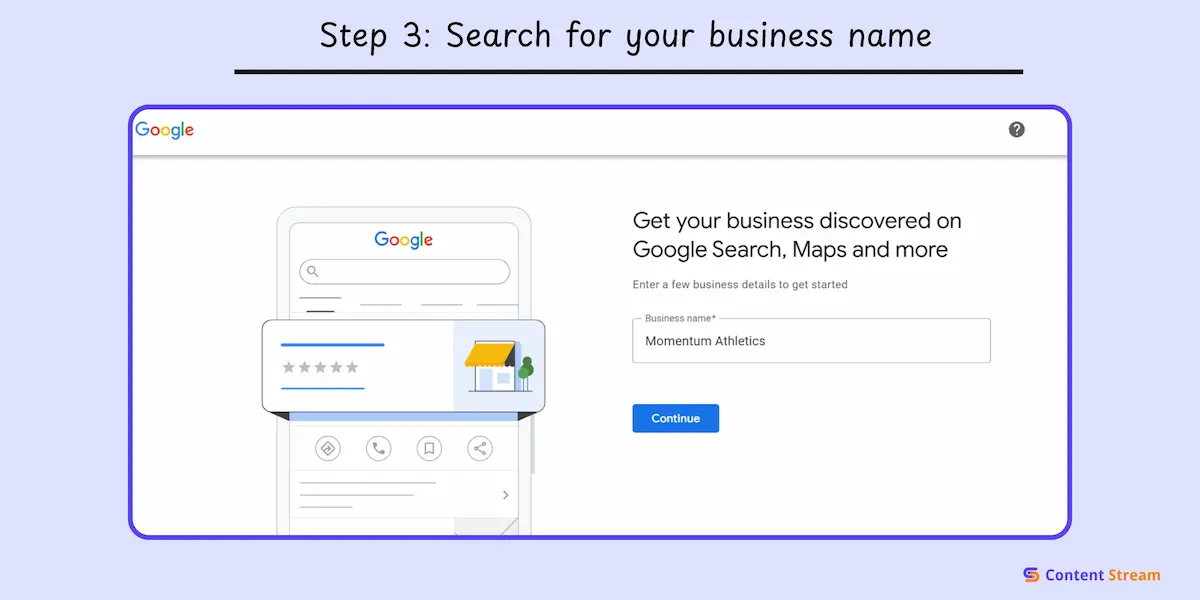
Type in your exact business name as it appears legally or as you want it to show up on Google. For this guide, we’re creating a new profile called Momentum Athletics. It won’t go live, as it goes against Google’s Business Profile guidelines. This is simply to show what the steps look like.
As you type, Google searches its database to see if a profile already exists with that name in your area. If your business pops up in the dropdown, that means someone already created a listing for you. This happens more often than you’d think. Google auto-generates profiles sometimes, or customers can even create them.
If you see your business listed, don’t create a new one. Click on the existing listing and then click “Request Access” to claim ownership. Follow the verification prompts to prove you own the business.
It’s important to note that Google’s guidelines state you should “represent your business as it’s consistently represented and recognized in the real world across signage, stationery, and other branding.”
Don’t add keywords like this:
Just use your actual name:
Next is details on how you serve customers. This determines how your profile appears in search results and what information you need to provide.
There are three options to choose from:
You can select multiple if they apply. For example, if you run a health club with a physical location that also sells supplements online, choose both “Local store” and “Online retail.”
If you’re a mobile trainer or coach, you’ll select “Service business” and then specify which areas you serve. You can list neighborhoods, cities, or zip codes where you travel to clients.
PRO TIP: Don’t list a fake address just to show up on the map in a specific area. Google’s algorithm will eventually pick up on this and suspend your profile.
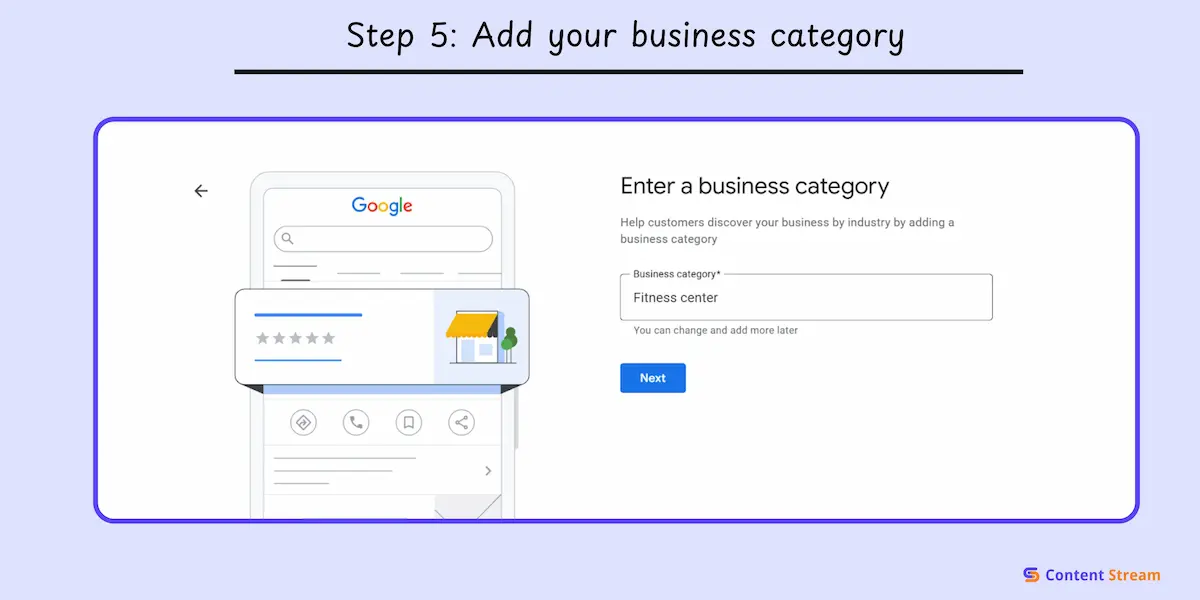
Your business category tells Google what you do and directly determines which searches you show up for. This step is very important in my opinion because of the following reasons:
Primary category has the most ranking weight: Your first category choice matters more than any secondary categories you add later.
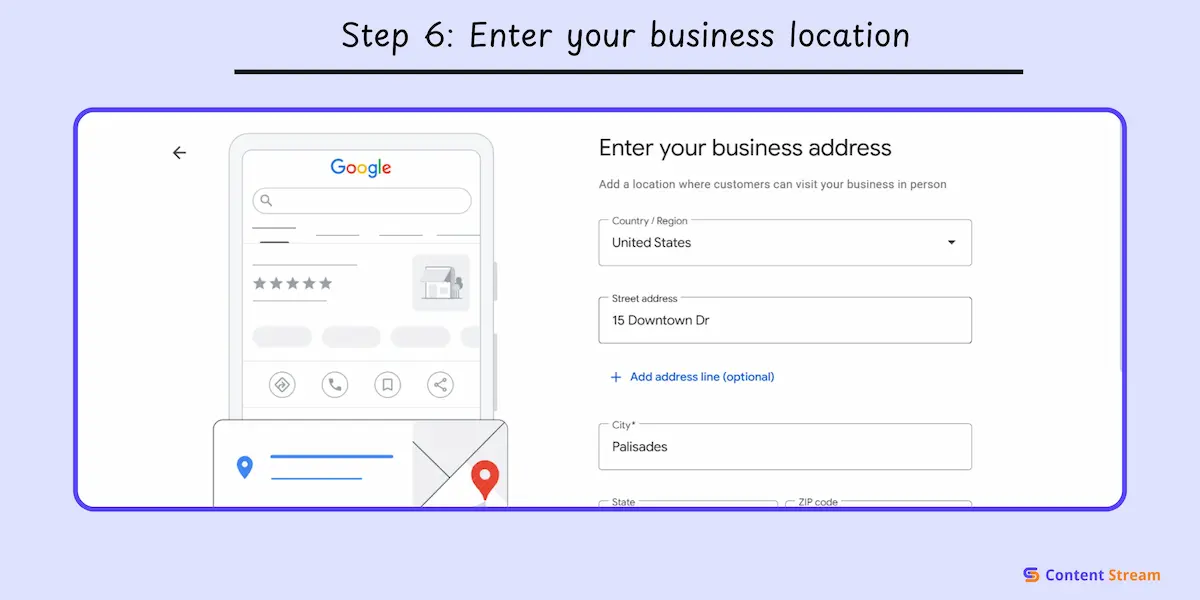
Google will ask for your business address. This is where your customers will find you, so accuracy matters.
Type in your complete address including street number, street name, suite or unit number (if applicable), city, state, and zip code. Don’t abbreviate or leave anything out. If the address is wrong, potential customers might end up in the wrong building.
After you enter the address, Google may also ask you to put a pin on a map to confirm the exact location of your business.
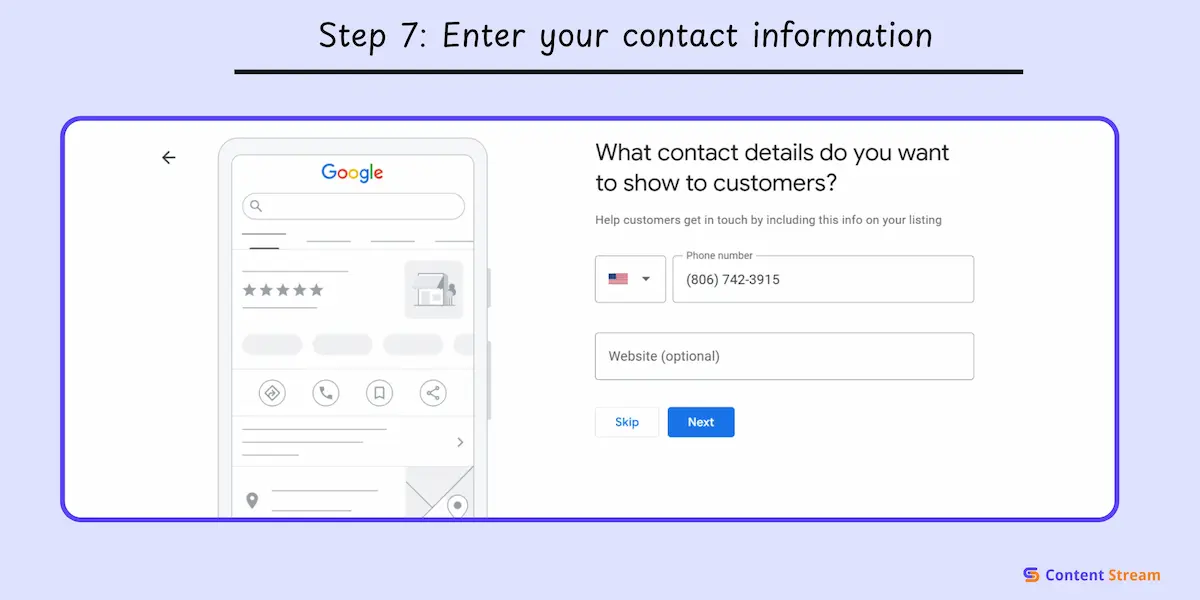
Google will ask for a phone number where customers can reach your business. It will show up in your profile. Google may also use it to reach you during the verification process.
Use your main business phone number, the one you actively monitor and want customers calling.
Don’t use:
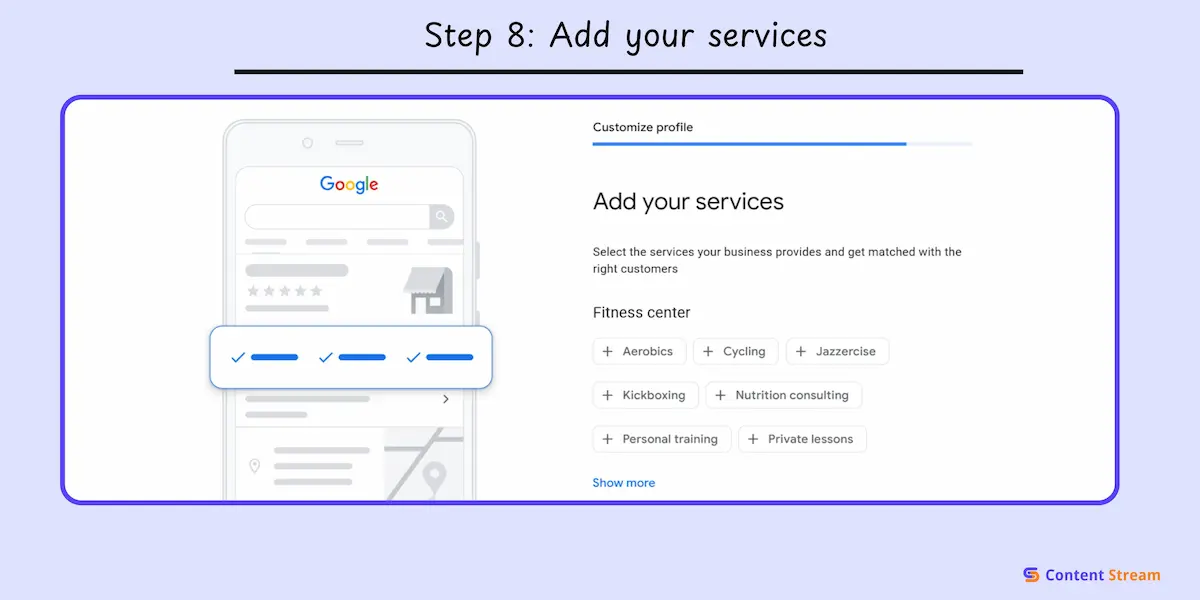
Google will prompt you to add the services your business offers. This helps customers understand what you do at a glance and improves your visibility for service-specific searches.
Start by selecting from Google’s suggested services that match your business type. You’ll see options pop up as you type. Pick the ones that apply to you.
You can also add custom services if Google’s suggestions don’t cover all the services you offer.
Here are some examples by business type:
For our example, we’d add services like “Personal Training,” “Group Fitness Classes,” “Strength Training,” and “Cardio Equipment.”
If you think you left something out, you can always tweak this in your dashboard later.
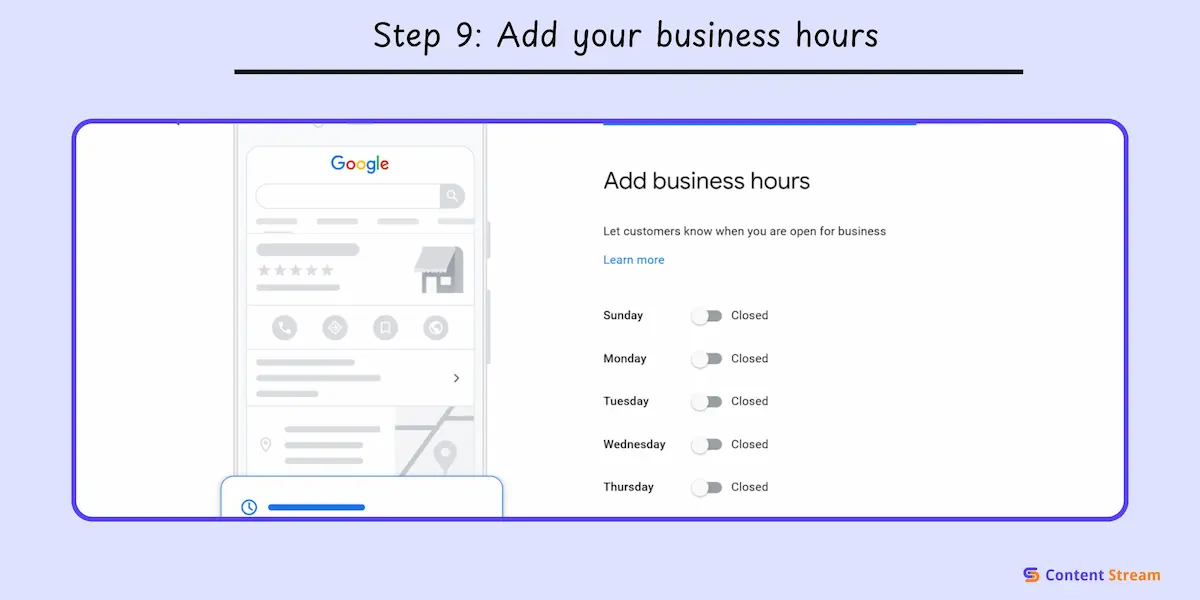
The business hours you set trigger the “Open now” indicator in search results so you want to be as accurate as possible.
What to include:
You can also add special hours later for holidays, events, or temporary closures.
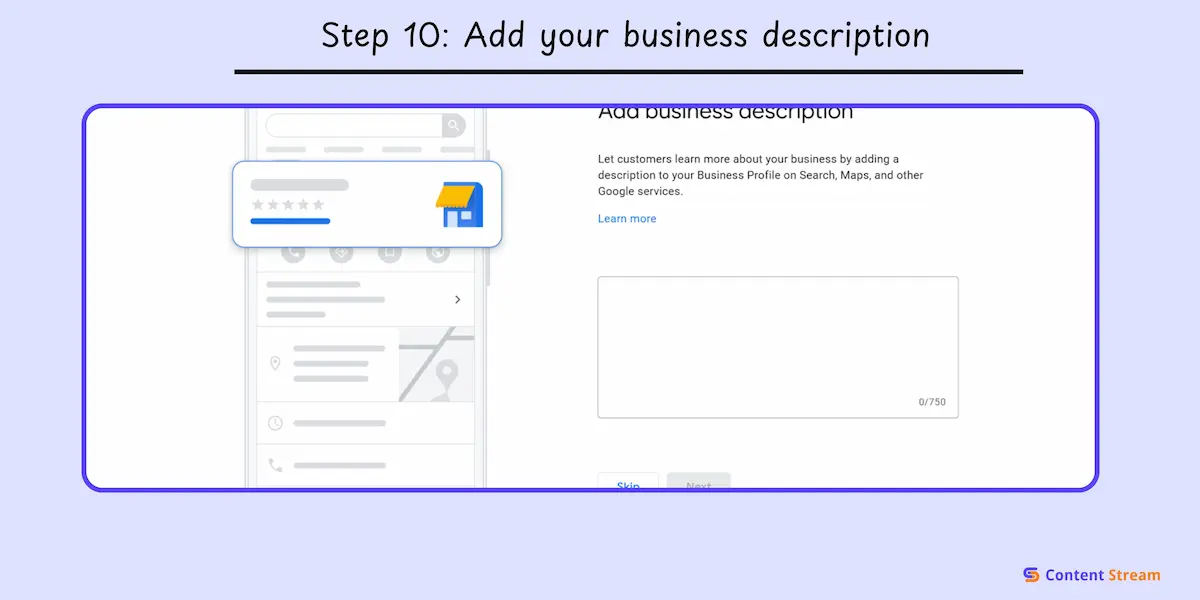
This is where you tell Google and potential members what your business does. You get 750 characters, so every sentence counts. Only the first 250 characters will appear in search results, so add the most important information first.
Include:
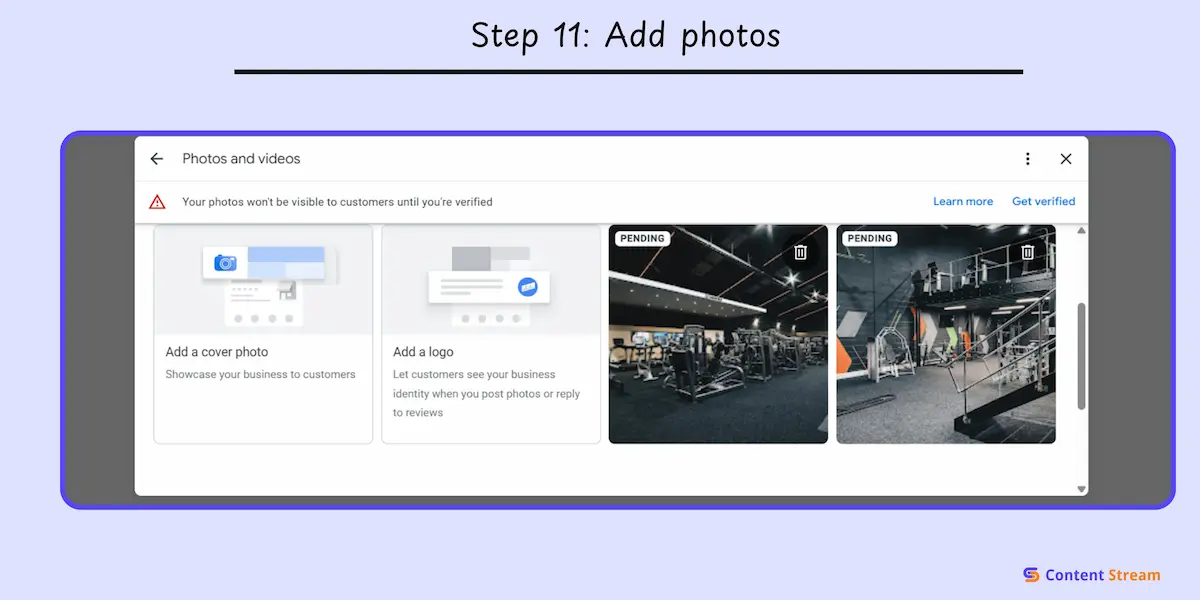
The more real photos you upload, the more people interact with your profile. Just like you’re less likely to visit a business with zero photos.
If you don’t have any photos on hand, you can always add them later. But it’s a good idea to add whatever you have now, and update later.
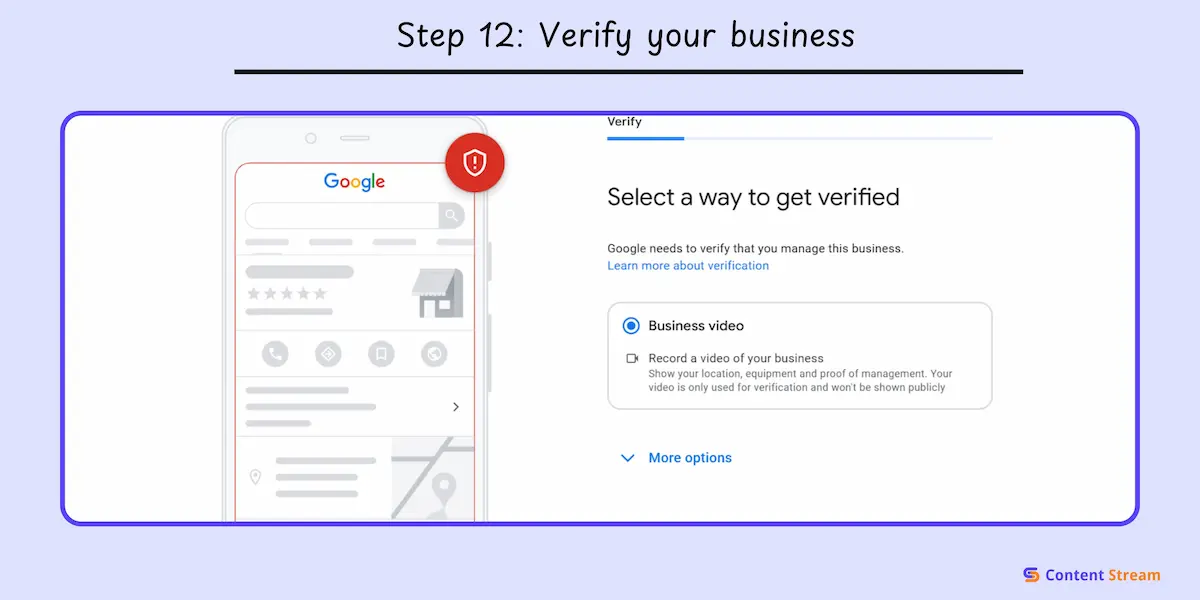
Verification proves you’re the real owner so until you verify, your profile won’t fully show in search results.
Google offers a few verification options.
This is the most straightforward option. Simply record a short video walkthrough of your business. This naturally needs to show the areas captured in your photos, as well as details of your address, etc. Follow Google’s on-screen instructions for clarity.
Here, Google mails a code to your business address. It usually arrives within a few days, depending on where your business is located. Enter the code in your dashboard to verify.
This is only available to some businesses. Here, you’ll get an automated code if eligible and can complete the process like that.
This step isn’t required, but it helps.
To add them, got to:
Link your Instagram, Facebook, or other active platforms.
Once your Google Business Profile is set up, it’s time to put it to work and attract customers.
Here are the small tweaks we recommend at Content Stream that can boost your visibility and help you show up for more searches.
Your business description helps Google understand your fitness business. It also helps people decide if your gym or studio is the right fit.
Think, “will this help customers who don’t know anything about my business?”
One key idea here is to identify 2–5 main keywords that describe your business and services. That could be “personal training,” “yoga classes,” or “strength training.” Integrate them naturally into full sentences. Avoid cramming keywords in.
And, don’t forget to include differentiators that set your business apart, whether that’s your coaches, your community, special programs, or equipment.
We’ve written a keyword research guide to help you navigate this successfully.
Google pulls keywords from this section to understand what you offer and match you to relevant searches, and it can be an easy win for your business.
When someone searches “personal training near me” or “hot yoga classes,” Google looks at your services section to see if you actually offer those things. If you haven’t listed them, you’re not showing up.
Use the Products section if you sell physical items: supplements, gym merchandise, fitness equipment, protein bars, workout gear.
Use the Services section if you offer classes, training, memberships, or anything experience-based. This covers most gyms, studios, and training facilities. Every service or product you list becomes a signal to Google about what you offer.
Photos and videos are huge for rankings. Profiles with photos get 42% more requests for directions and 35% more clicks to websites. Google sees visual content as proof you’re a real, active business.
Quality matters more than quantity. Use well-lit, high-resolution images that actually represent your business. Skip the blurry phone pics and stock photos. Real photos of your real space build way more trust.
Types of photos you need:
Videos make a difference, too. A 15 to 30 second walkthrough video of your facility works wonders. Give people a quick tour showing different areas, equipment, and the overall atmosphere. You can even repurpose appropriate videos from your Instagram or TikTok.
Google Posts are mini updates that appear directly on your profile. They expire after seven days (or after the event date for event posts), so they need to be refreshed regularly.
But that doesn’t mean you need to be posting every week. Instead, use it as a way to share important or topical information with the relevant audience.
These posts show Google you’re actively managing your profile, which boosts your relevance in competitive local searches.
Think of posts as free advertising space right on your Google listing. When someone views your profile, they see your latest updates front and center.
Here are ideas on what to post about:
Reviews are one of the strongest ranking factors in local search. Google looks at how many reviews you have, how recent they are, and your overall rating. More reviews, plus a solid rating, equal better conversions. Local backlinks also reinforce the credibility that reviews and profile activity already signal.
People trust reviews. They read them before deciding where to spend their money. A gym with 200 reviews and a 4.7-star rating will always beat a gym with 30 reviews and a 5-star rating, because volume and consistency signal legitimacy.
How to generate reviews ethically:
In the same vein, responding to reviews isn’t just good customer service. It’s an SEO signal. Google sees active engagement as a sign you care about your customers, and that boosts your prominence score.
Reply to every review if you can, but at minimum, respond to negative ones immediately and positive ones within a few days.
For negative reviews, stay professional, acknowledge their concern, and offer to make it right. Beyond giving SEO signals, it’s a great customer service practice.
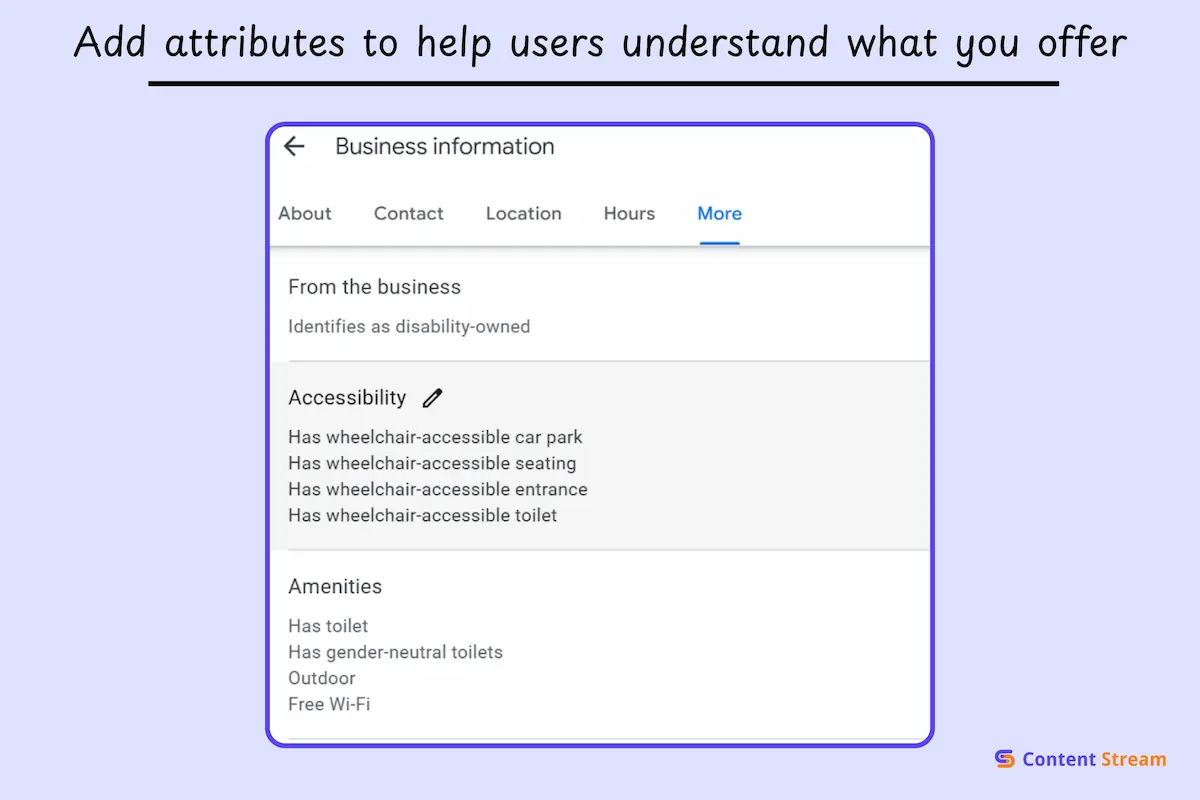
Attributes are tags that describe special features about your business, and they can help you show up in filtered searches.
Google lets searchers filter results by attributes. Someone might search for “wheelchair accessible gym near me” or “women-owned fitness studio.” If your gym offers both of these but you don’t have them listed, you could be missing out on visits.
Some key attributes for fitness businesses include:
Once your basics are solid, you can go a step further with advanced tweaks. These aren’t required, but they can give you clearer insights and better control.
If you want to see how many people visit your site from your Google Business Profile, UTM tracking helps. You can add UTM parameters to your website link in Google Business Profile. This lets you spot GBP traffic clearly inside Google Analytics.
Now, if your gym isn’t getting huge traffic yet, this step is optional. It’s most helpful for multi-location gyms or fitness businesses investing heavily in local SEO and tracking real ROI.
To set it up, just add UTM parameters to your website URL in your profile settings. For example:
yourwebsite.com?utm_source=google&utm_medium=organic&utm_campaign=gbp.
Then you can track visits, conversions, and revenue from GBP in your analytics dashboard.
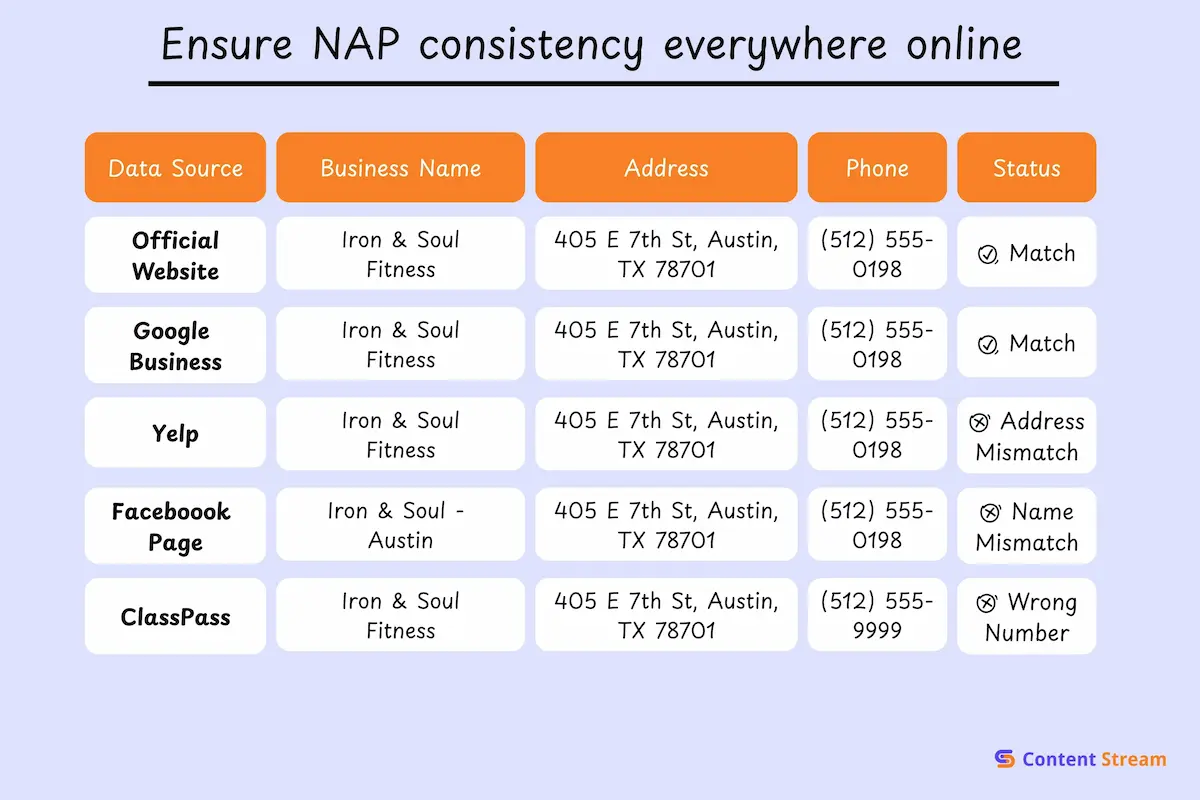
NAP stands for Name, Address, Phone number. Google uses this information to verify your business is legitimate and consistent across the internet.
When your NAP doesn’t match everywhere it appears online, Google gets confused about which version is correct. Unfortunately, that confusion hurts your rankings.
Think of it like this. Your Google Business Profile says “123 Main Street.” Your Yelp listing says “123 Main St.” Your Facebook page still shows your old address from before you moved.
Sometimes, this is fine. But some other times, Google’s algorithm may not know which address to trust. This is a mild example, but other inconsistencies can weaken your local SEO.
Where your NAP needs to match:
If you run more than one gym or studio, your website and Google Business Profile need to stay in sync. This step isn’t necessary for single-location businesses. But for multi-location fitness brands, it matters a lot.
Each location needs its own support system. Your Google Business Profile can’t do all the work alone. It needs a strong location page on your website to back it up.
Here’s how that ranking synergy works:
Every location page should include:
For gym chains and multi-location studios, your GBP setup also needs structure. Each location should have its own profile. Ideally, you also want them to have their own page on your website, and use local schema to show they are local separate entities. LIke the example below of Anytime Fitness.
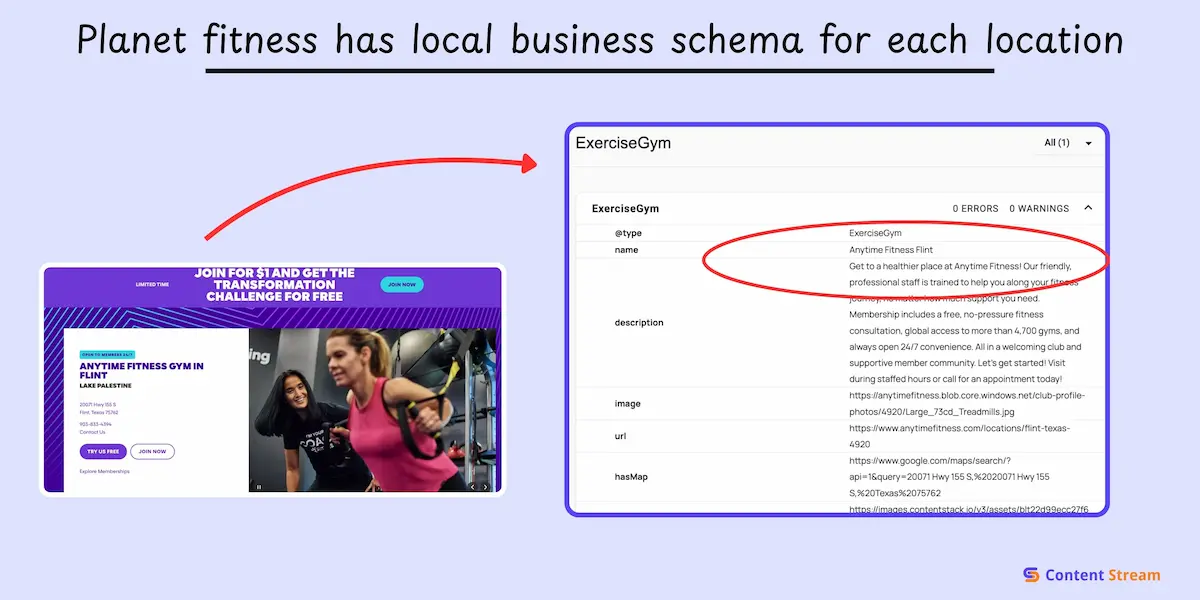
We have a blog on optimizing gym chains for SEO. Check it out for more information.
Follow these best practices:
Here are some hard numbers that show just how important your GBP is:
Optimizing your profile is not optional if you’re looking for consistent business growth.
But when you add this to the list of other tasks, it starts to feel overwhelming.
Let Content Stream do the heavy lifting. We’ve already analyzed what’s working across fitness businesses in competitive local markets and identified the exact keywords, topics, and optimization gaps that actually move rankings. Instead of guessing what to post or which updates matter, you get a clear, proven direction based on real data.
Download your free list of low-difficulty keywords for fitness businesses. Use it to create GBP updates and content that rank locally and bring more members through your doors.
It’s very easy to change your Google Business Profile. Simply log into your Google Business Profile account, select your business, and click “Edit profile.” You can update your business name, hours, address, phone number, services, and photos instantly. Most changes appear within minutes, though some updates (like your business name or category) may require verification and can take longer to process.
If someone else has claimed your profile, request access through Google Business Profile. Click “Own this business?” on your listing, then follow the verification steps. The current owner has 3 days to respond to your request. If they don’t respond or deny your request, you may have the option to claim the profile through verification. If you can’t regain access, contact Google Business Profile support directly with proof of ownership.
If your profile isn’t showing up, first verify your listing is published (not in draft mode) and fully verified. Check that your business category is accurate and your NAP (Name, Address, Phone) information matches what’s listed across the web. If your profile appears below others, you may need to optimize it more using a combination of keywords, review requests, and Google Posts.

I’m Matthew, a personal trainer turned SEO who’s worked with brands like Gymfluencers, Sailo, ClickCease, and Fraud Blocker. These days, I help small to medium sized companies grow their reach with smart, search-focused content.
